How to Make a Google Review QR Code (and Get More Reviews the Right Way)

Most happy customers would leave you a review if it took ten seconds. The trouble is that it usually takes two minutes: open Maps, search your business name, pick the right branch, scroll to reviews, find the button. By the time they get there, they have moved on.
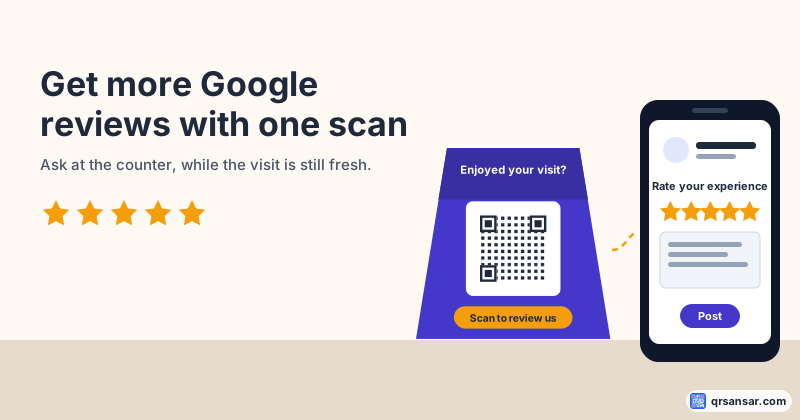
A review QR code cuts all of that down to one scan. The customer points their camera at a card on your counter and lands directly on the review box for your business, star rating ready to tap.
This guide covers how to get your Google review link, how to turn it into a code that prints well, where to put it, and the rules that decide whether those reviews stay up.
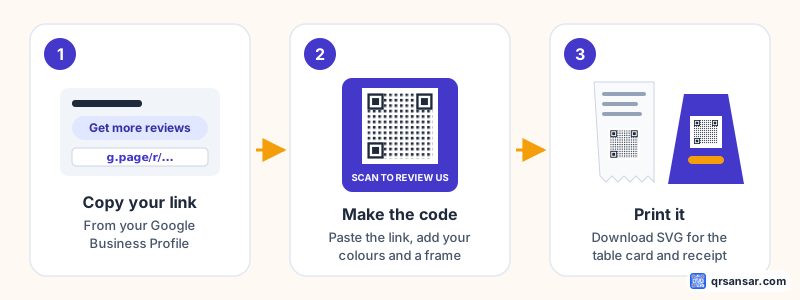
Step 1: Get your Google review link
Your review link comes from your Google Business Profile. You need to be an owner or manager of the profile to see it.
- Sign in to the Google account that manages your business and open your Business Profile (searching your business name on Google while signed in usually brings up the management panel).
- Find the reviews section and look for the option to get more reviews or ask for reviews.
- Copy the link it gives you. It usually looks like
https://g.page/r/followed by a code.
Google moves these buttons around from time to time, so the wording on your screen may differ slightly. If you manage more than one location, double-check that you have the right branch selected before you copy. A review link for the wrong branch is a surprisingly common mistake.
Test the link before you go any further. Open it on your phone. It should land on the review box for your business, not on a search page.
"Doesn't Google already give me a QR code?"
Yes. The same screen in your Business Profile also offers a QR code you can download, and for many businesses it's perfectly good.
Making your own is worth it when you want:
- A frame with a call to action. A bare code on a counter gets ignored. "Scan to review us" printed around it tells people what it's for.
- Your brand colours so the card looks like part of your shop, not a sticker someone left.
- A vector SVG for print, so the code stays sharp on anything from a receipt to a window decal (why that matters).
- A code you can redirect later, if you move to a new profile or want to send people to a different review site in future.
Step 2: Turn the link into a QR code
You have two good options on QRSansar. Both are free.
Option A: a simple static code (no account needed). Paste your review link into the URL QR generator. Add a frame and type your own call to action, such as Scan to review us. Pick your colours, keeping the code dark on a light background (contrast rules here), and download it as SVG. The link lives inside the code itself, so it never expires.
Option B: a review code you can change later (free account). The review QR tool creates a code that goes through QRSansar first, so you can update where it points without reprinting. For Google, set the mode to "Redirect only". That sends every scan straight to your Google review link, which is exactly what Google's rules ask for. (More on why below.)
Whichever you choose, scan the finished code with two different phones before you print.
Step 3: Put it where people actually scan
A review code works best at the moment someone is pleased with you and has a few seconds to spare. In most businesses that's one of five places:
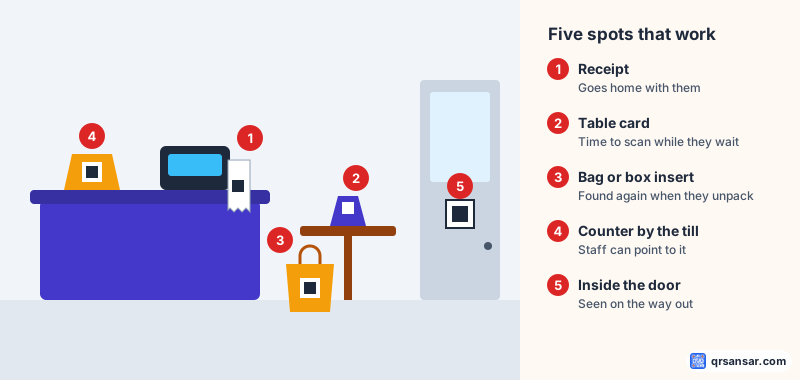
- The receipt. It goes home with them, and a lot of people look at it again later.
- A table card. Restaurants and cafes have a natural wait between ordering and the food arriving.
- A bag or box insert. Unpacking a purchase at home is a moment of fresh opinion. This works especially well for online orders.
- The counter by the till. Your staff can point to it with a simple "If you enjoyed it, we'd love a review."
- Inside the door. Seen on the way out, right after the experience.
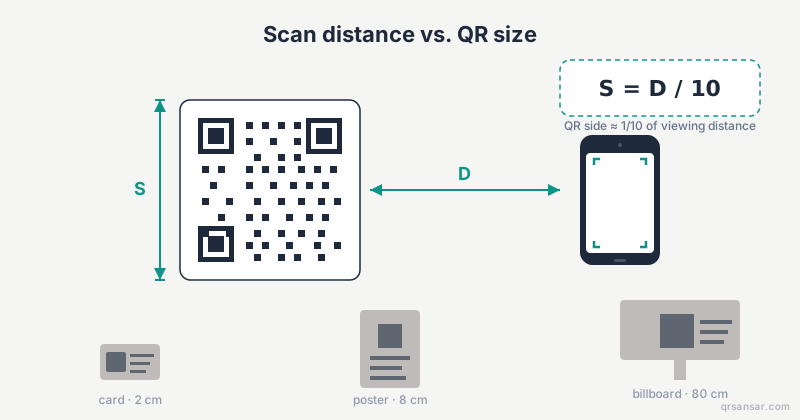
Size matters. On a receipt, keep the code at least 2 cm wide. On a table card read from a seat, 3 to 4 cm is comfortable. Our print-size guide has the formula if you're putting it somewhere further away.
The rules: ask everyone, offer nothing
This is the part most review guides skip, and it's the part that decides whether your new reviews stay published.
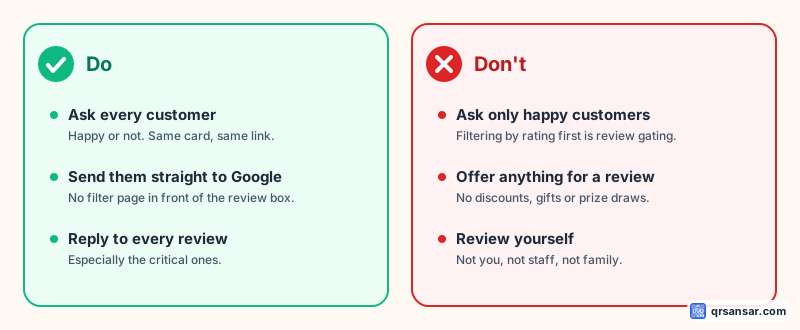
Google's policies for reviews on Maps say businesses must not selectively solicit positive reviews or discourage negative ones, and must not offer incentives (discounts, freebies, payments or prize draws) in exchange for reviews. Google uses automated systems as well as human reviewers to spot this, and reviews that break the rules can be removed.
In practice, that means:
- No "rate us first" filter. Some review tools ask for a star rating, then send only the 4 and 5 star customers to Google and route everyone else to a private form. This is often called review gating, and it is the textbook example of selectively soliciting positive reviews. That's why we recommend Redirect only mode for Google: every scan goes straight to the review box.
- No discounts for reviews. "Leave a review and get 10% off" is an incentive, even if you don't check what the review says. A separate coupon for everyone, like the January coupon in our holiday ideas guide, is fine as long as it isn't tied to reviewing.
- No reviews from yourself, your staff or your family.
Private feedback forms are still useful. If you want to hear what went wrong, put a separate "Tell us how we can do better" code somewhere else, like on the menu or the website. Just don't stand it in front of the review link.
Reply to every review
Asking for reviews is half the job. Replying to them is the other half, and future customers read the replies.
- Thank good reviews by name and mention something specific, like the dish or the service they liked.
- Answer critical reviews calmly and quickly. Acknowledge the problem, say what you have changed, and offer to continue the conversation offline. A good reply to a bad review often does more for your reputation than another five stars.
Make it a habit, not a campaign
The businesses with the most reviews didn't run a review drive once. They put a code on every receipt and every table and left it there. One code, printed once, quietly working every day.
If you are printing for the holiday season, do the rest of your setup at the same time. Our six holiday QR ideas cover guest WiFi, menus and event passes too.
Launch offer: QRSansar's launch offer runs until 31 December. If you need more dynamic codes than the free plan includes, see the current discount on the offers page. The static review code in Option A stays free forever.