How to Create a Free WiFi QR Code (No Sign-Up, 100% Private)

Share Your WiFi Without Saying a Word
You know the moment. A friend walks in, opens their phone, and asks: "Hey, what is the WiFi password?" You squint at the back of the router, read out a string of random characters, they mistype it, and you do the whole dance again.
There is a better way: a free WiFi QR code. One scan with the built-in iPhone or Android camera and the device joins your network automatically — no typing, no typos, no awkward repeating of "capital Z, zero, dollar sign…"
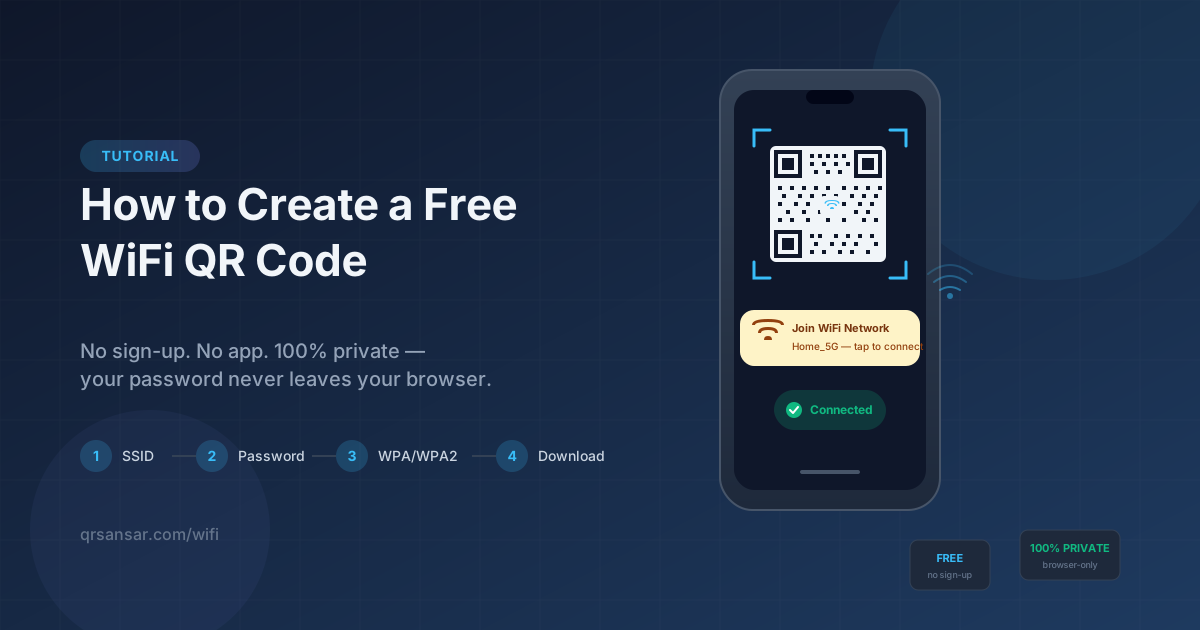
This guide shows you how to create a WiFi QR code online for free using QRSansar. No sign-up. No app download. Your password never leaves your browser.
Generate Your WiFi QR Code Now →
Why Use a WiFi QR Code?
A WiFi QR code is a tiny, printable, free upgrade to how you share your network. Here is why people are switching from sticky notes and whiteboards:
- No more dictating passwords — guests scan and connect, even if your password is
Tr0ub4dor&3!. - Faster than typing — a single scan vs. 20+ taps on a touchscreen keyboard.
- Fewer typos — eliminates the "wrong password" loop that everyone hates.
- Works on iPhone and Android — built-in camera apps recognize WiFi QR codes natively (iOS 11+ and Android 10+).
- Looks professional — print one for your café, Airbnb, office reception, or guest bedroom and instantly upgrade the experience.
- Free and private — with QRSansar, the whole thing happens in your browser. Your SSID and password are never uploaded anywhere.
Step 1: Open the QRSansar WiFi QR Code Generator
Head to qrsansar.com/wifi. There is no sign-up wall, no email capture, no "free trial" countdown. The generator loads instantly and you can start creating your QR code right away.
You will see a clean form with three required fields: Network Name (SSID), Password, and Encryption Type.
Step 2: Enter Your Network Name (SSID)
The SSID is just the name of your WiFi network — the same name that shows up when your phone scans for networks. Examples: Home_5G, CafeMocha-Guest, Acme-Office-2.
A few quick tips:
- Type it exactly as it appears — SSIDs are case-sensitive on most devices.
- Watch out for trailing spaces —
Home_5G(with a trailing space) is a different network fromHome_5G. - Special characters are fine — emojis, dashes, underscores, and dots all work.
Step 3: Enter Your Password
Type your WiFi password into the password field exactly as it is on your router. WPA2 passwords can be 8–63 characters, and any character is allowed — including symbols, spaces, and Unicode.
🔒 Privacy callout: Your password is never sent to a server. QRSansar generates the QR code entirely inside your browser using client-side JavaScript. We do not log, store, or transmit your WiFi credentials. Close the tab and the data is gone forever.
If your network is open (no password), leave this field blank and select "None (Open)" in the next step.
Step 4: Choose the Right Encryption Type
The encryption dropdown is the field most people get wrong. Pick the one that matches your router:
| Encryption | When to Use | Notes |
|---|---|---|
| WPA / WPA2 | Default for almost every home and business router since 2006 | If you are not sure, pick this — it covers 95% of networks |
| WPA3 (SAE) | Newer routers (2020+) with WPA3 enabled | Stronger security, but the scanning device must also support WPA3 |
| WEP | Very old hardware (legacy only) | Insecure — replace your router if you can |
| None (Open) | Public/guest networks with no password | Leave the password field blank |
Pro tip: If you have a mix of new and old devices on the same network, keep your router in WPA2/WPA3 transition mode and select WPA/WPA2 here for maximum scan compatibility.
Hidden Network?
If your SSID is not broadcast (a hidden network), tick the "Hidden network" checkbox. This adds the hidden flag to the QR data so scanning devices know to connect directly instead of searching for the SSID in the air.
Step 5: Customize and Download
Once your network details are in, you can leave the design as-is or make it look like yours:
- Dot color — pick any hex color to match your brand or décor.
- Background color — usually white for printing, but transparent and dark variants work too.
- Dot style — square, dots, rounded, classy. Six styles to choose from.
- Logo — drop in a PNG, JPG, or SVG. Error correction is automatically raised to High (H) so the code stays scannable with a logo in the middle.
- Size — 256px, 512px, or 1024px. For print, go 1024px. For digital, 512px is plenty.
- Format — PNG for digital and most printing, SVG for posters and large signage where you need to scale without losing sharpness.
Click Download and your WiFi QR code is on your device in seconds. That is it. No watermark, no sign-up, no email confirmation.
How to Scan a WiFi QR Code
Once the QR code is printed (or on a screen), scanning is effortless:
iPhone (iOS 11 and later)
- Open the Camera app
- Point it at the QR code
- A yellow banner appears: "Join 'Home_5G' Network"
- Tap the banner — connected.
Android (10 and later, most devices)
- Open the Camera app (or Google Lens)
- Point it at the QR code
- Tap the popup: "Connect to Wi-Fi network"
- Confirm — connected.
For older Android phones, Google Lens or the Files by Google QR scanner works too. No third-party app needed.
Where to Put Your WiFi QR Code
Once you have a printed WiFi QR code, the placement ideas are endless:
- Cafés and restaurants — laminate it on the counter or print it on table tents. Customers connect themselves, your staff stops repeating the password 50 times a shift.
- Airbnb and short-term rentals — a small framed QR by the bed or kitchen is a tiny upgrade that gets mentioned in reviews.
- Office reception — a guest WiFi QR on an acrylic stand is faster (and more professional) than handing out sticky notes.
- Conference rooms — print one and stick it inside the room so visitors can hop on the guest network instantly.
- Home guest bedrooms — a small framed print on the nightstand is a thoughtful touch your visitors will remember.
- Behind the router — stick a label on the back of the router so anyone in the house can rejoin without hunting for the password.
- Stickers and badges — small vinyl stickers on event lanyards, name badges, or laptop cases.
Troubleshooting: Common WiFi QR Code Issues
"It won't connect when I scan it"
- Check the encryption type. Selecting WPA3 when the router is on WPA2 (or vice versa) is the #1 cause of silent failures.
- Re-check the password. Even one wrong character means the device fails silently. Spaces and case matter.
- Try WPA/WPA2. If you cannot tell what your router is on, regenerate with WPA/WPA2 — it is the most universally supported option.
"The QR code is hard to scan"
- Increase the size. Print at 1024px or use SVG so the code stays sharp.
- Lower the contrast risk. Dark dots on a light background scan best. Avoid red-on-green or pastel-on-pastel.
- Add error correction. Adding a logo automatically raises error correction to H — but you can also raise it manually for damaged or printed-on-curved-surface QR codes.
"It works on iPhone but not Android"
- Update Android. WiFi QR auto-connect is most reliable on Android 10 and later.
- Use Google Lens if the native camera does not handle it.
- Hidden networks sometimes need a manual confirm step on older Android versions — tap "Connect" again in WiFi settings.
Frequently Asked Questions
Is the QRSansar WiFi QR code generator really free?
Yes — completely free. No watermarks, no account, no email signup, no scan limits. You can generate and download as many WiFi QR codes as you want.
Is my WiFi password safe?
Yes. The generator runs entirely in your browser. Your SSID and password are never sent to our servers, never logged, and never stored. Close the tab and the data is gone.
Does the QR code work without internet?
Yes. A WiFi QR code is static — the network name, password, and encryption type are encoded directly into the QR pattern. No server, no expiry, no internet required to scan it.
Can I use the QR code on a printed sticker or sign?
Absolutely. Download the SVG format for crisp printing at any size — perfect for posters, table tents, acrylic stands, or vinyl stickers. PNG works fine for normal-size prints (badges, tent cards, A5 signage).
Do WiFi QR codes work on iPhone and Android?
Yes, both. iOS 11+ recognizes WiFi QR codes from the built-in Camera app. Android 10+ does the same via the Camera app or Google Lens. No third-party scanner app needed.
Can I add my logo to the WiFi QR code?
Yes. Drop your logo image into the customization panel. Error correction is automatically raised to High so the code stays scannable.
Will the QR code expire?
No. Static WiFi QR codes do not expire. They keep working as long as your network name, password, and encryption stay the same. If you change your password, generate a new code — it takes 30 seconds.
Is there a limit to how long my WiFi password can be?
Not in practice. QR codes can hold up to 4,296 alphanumeric characters, and the WPA2 maximum is 63 characters. Even very long, complex passwords fit comfortably. For passwords over 40 characters, print the QR at 1024px or use SVG so the dense pattern scans cleanly.
Quick Recap
| Step | What You Do | Time |
|---|---|---|
| 1 | Open qrsansar.com/wifi | 5 sec |
| 2 | Enter your SSID (network name) | 10 sec |
| 3 | Enter your WiFi password | 10 sec |
| 4 | Pick encryption (WPA/WPA2 if unsure) | 5 sec |
| 5 | Customize and download PNG or SVG | 30 sec |
Total: under one minute, completely free, 100% private.
Ready to Stop Dictating Passwords?
Your guests deserve better than a sticky note on the fridge.
Create your free WiFi QR code now →
Want more QR code types? QRSansar also generates vCard QR codes, URL QR codes, Email QR codes, SMS QR codes, Event QR codes, and more — all free, all private, all without sign-up.