The Quiet Zone Mystery: Why Your Custom QR Code Stops Scanning

The bug that is not a bug
You designed a beautiful business card. The QR code sits flush against the edge, or tight inside a custom frame, or floating on a coloured background. It looks clean. It does not scan.
You blame the printer, the camera, the lighting, the QR generator. Almost always, the real culprit is the same: you ate the quiet zone.
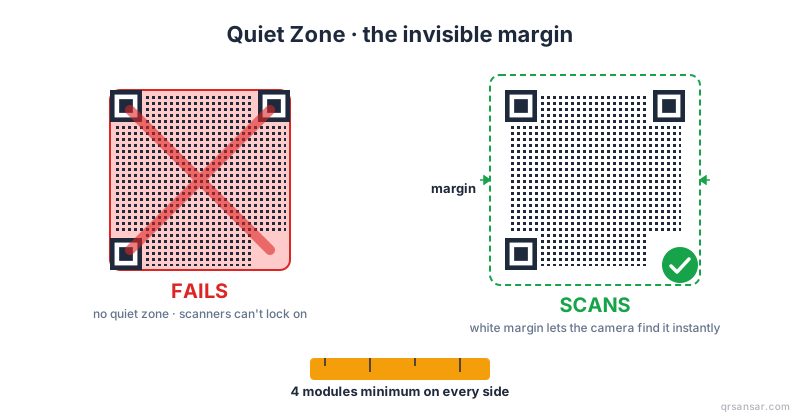
The quiet zone is the white margin surrounding a QR code. It is not styling. It is part of the ISO/IEC 18004:2024 specification — the same standard that defines the finder patterns, the timing patterns, and the error correction structure. Remove it and the scanner has nothing to lock onto.
The quiet zone is to a QR code what silence is to a phone call. You only notice it when it is gone, and what is left does not work.
What the spec actually says
The QR Code specification mandates a quiet zone of at least 4 modules on every side of the code. A "module" is one of the tiny squares that make up the matrix — the smallest unit of the code itself.
So if your QR contains a 25×25 grid of modules and the rendered code is 200 pixels wide, each module is 8 pixels. The minimum quiet zone is 4 × 8 = 32 pixels of white space on every side. The total bounding box, including quiet zone, becomes 264 × 264 pixels.
Denso Wave, the original inventor of the QR Code in 1994, holds the relevant patents and publishes the canonical reference. Their guidance is identical: 4 modules minimum, white background, no exceptions.
Most QR code generators (including ours at QRSansar) bake the quiet zone into the exported image automatically. The trouble starts when a designer drops that image into Canva, Figma, or InDesign and starts trimming.
Why the scanner needs the margin
A QR scanner works in roughly three stages:
- Find. Locate the three large square patterns in the top-left, top-right, and bottom-left corners (the finder patterns).
- Orient. Use the spatial relationship between those three patterns to determine the code's rotation and perspective.
- Decode. Read the modules in the matrix, apply error correction, and extract the payload.
Stage 1 is where the quiet zone matters. The scanner is looking for a very specific signature: a square of dark modules, surrounded by light modules in a known ratio. If your QR sits directly against another dark element — a photograph, a logo, a black border — the scanner's edge-detection logic gets confused. The finder pattern blurs into the background and never gets identified. The scanner gives up before it ever reaches stage 2.
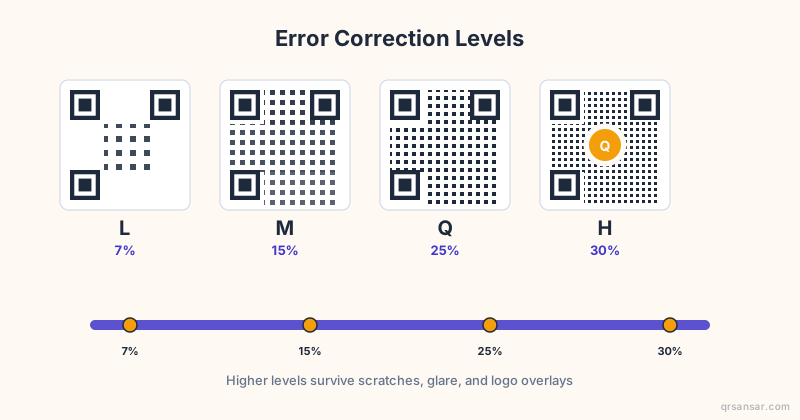
This is also why error correction level (read our L/M/Q/H deep dive) cannot rescue you here. Error correction repairs damage to the data modules inside the code. It cannot synthesize a finder pattern that was never located in the first place.
The five mistakes designers make
After looking at thousands of "why does this not scan" support tickets, the same five errors account for nearly all quiet zone failures.
1. Canva templates that crop to the QR edge
Canva's default behaviour when you drop a QR into a tight design slot is to fit the image to the slot. If the slot is exactly 100×100 pixels and your QR has a 10-pixel quiet zone built in, Canva will scale the whole image to fit — and the quiet zone scales with it. That part is fine. The failure happens when the designer manually drags the corners outward to "make the QR bigger" without realizing they have just pushed the quiet zone outside the visible canvas.
Fix. Keep the bounding box at the imported size, or scale uniformly. Never crop, never extend beyond the canvas edge.
2. Custom frames that overlap the code
You have seen these everywhere: a coloured frame that says "SCAN ME" with an arrow, and the QR sits inside the frame. Often the frame's inner edge sits a millimetre from the dark modules. That millimetre is not four modules. The scanner fails.
Fix. Frame outside the quiet zone, not inside it. If your QR has a 32-pixel quiet zone, the frame's inner edge must sit at or beyond the 32-pixel mark.
3. Gradient backgrounds that eat the margin
A QR rendered on a gradient background (white at one corner, fading to blue at the opposite corner) loses its quiet zone on the blue side. The blue is not light enough to count as "light modules" to the scanner.
Fix. Always keep a solid light rectangle behind the QR plus its full quiet zone. The rest of the design can be as gradient as you like.
4. Dark business cards with QR directly on the dark colour
The most fashionable mistake of 2024-2026: matte black business cards with a QR printed directly onto the black background, sometimes in white-on-black. There is no quiet zone because there is no light surrounding area. Most modern smartphone scanners can handle inverted (light-on-dark) QRs, but they still need a light area surrounding the dark foreground — which on a black card simply does not exist.
Fix. Print the QR inside a white rectangle on the black card. The rectangle should be at least 4 modules wider than the QR itself on every side. Yes, this breaks the all-black aesthetic. It also makes the QR work.
5. Quiet zone "transparent" exports
When you export a QR as a transparent PNG and drop it onto a coloured website, the quiet zone is now whatever colour is behind the image. If that background is anything other than light grey or white, you have lost the quiet zone.
Fix. Export with an explicit white background, or ensure the page background behind the QR is light. For print, use SVG instead of PNG and bake a white rectangle into the SVG.
The exact math: how to calculate quiet zone size
Here is the calculation, step by step, with a worked example.
Step 1. Determine the module count of your QR. This depends on the QR version (1-40). A short URL might encode as Version 3 (29×29 modules); a longer URL with high error correction might be Version 6 (41×41 modules).
Step 2. Determine the final printed or displayed size of the QR. Let us say 250 pixels wide.
Step 3. Divide. Module size = 250 / 29 = 8.62 pixels per module.
Step 4. Multiply by 4. Quiet zone = 4 × 8.62 = 34.5 pixels on every side. Round up to 35 pixels for safety.
Step 5. Total bounding box. 250 + (2 × 35) = 320 pixels wide.
| QR rendered size | Approx. modules | Module size | Quiet zone (4 modules) | Total bounding box |
|---|---|---|---|---|
| 100 px | 29 | 3.4 px | 14 px | 128 px |
| 200 px | 29 | 6.9 px | 28 px | 256 px |
| 300 px | 33 | 9.1 px | 37 px | 374 px |
| 500 px | 41 | 12.2 px | 49 px | 598 px |
| 1000 px (print) | 41 | 24.4 px | 98 px | 1196 px |
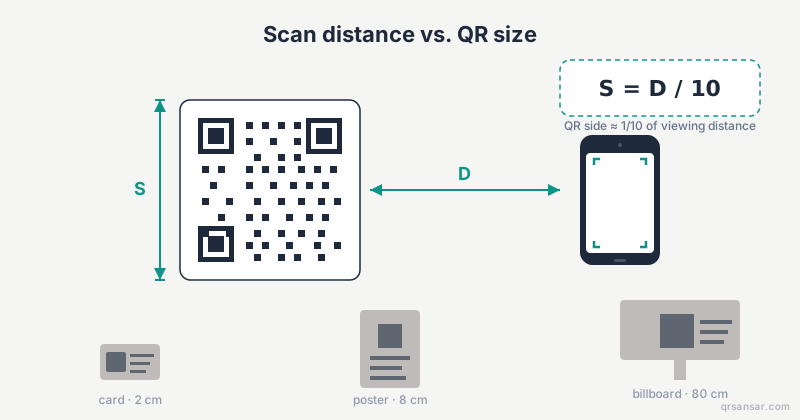
For print work, also account for the physical scanning distance formula: the larger you print, the further away the scanner can be, but the quiet zone scales proportionally.
Inverted and dark-themed quiet zones
A frequent question: "Can my quiet zone be dark instead of white?"
The honest answer: sometimes. Most iOS scanners since iOS 14 handle inverted QR codes (light foreground on dark background) reasonably well. Android support is more variable — depends on the OEM scanner, the camera app, and the firmware. Many third-party QR scanner apps still fail on inverted codes.
The safe path: keep your quiet zone white (or at least a very light colour, say #F5F5F5 or lighter) even if your design language wants dark everywhere. The visual hit is small. The reliability gain is significant.
If you must go fully inverted, test on at least five devices spanning recent and three-year-old Android phones before printing anything in volume.
The decision tree
Use this when troubleshooting a QR that "looks fine but does not scan":
- Is there visible white margin on all four sides? No → add quiet zone, retest.
- Is the margin at least 4 modules wide? Eyeball it — about as wide as one of the corner finder patterns is tall. No → enlarge the margin.
- Is the margin actually white (or near-white)? No → replace coloured/gradient/photographic margin with solid light.
- Does the margin extend behind any frame, sticker, or overlapping element? Yes → move the frame outward.
- Is the QR inverted (light-on-dark)? Yes → test on multiple devices, or add a white rectangle background.
- Still failing? Now check contrast, then error correction level, then print resolution.
Before and after: a real example
A Kathmandu cafe printed 5,000 loyalty cards with a QR code linking to their digital menu. The QR sat inside a decorative leaf-pattern frame, with the frame's inner edge approximately 1 module away from the dark modules of the code. Of the first 200 customers, 38% reported their phones could not scan the card. The cafe blamed customer phones.
The fix: re-print with the same frame but pushed outward by 6 modules' worth of distance, leaving a clean white inner ring. The next batch of cards scanned reliably on every tested phone, including older Android 8 devices. The frame still looked good. The reprint cost less than refunding the loyalty rewards owed to customers who could not scan.
The lesson: quiet zone failures look like a vague "QR codes are unreliable" problem to the end user. They are not unreliable. They are following the spec. The spec just happens to be unforgiving about one thing.
When you need to push the limits
Some designers genuinely cannot afford the quiet zone budget — a postage stamp, a foil-embossed pen barrel, an extremely narrow magazine column. In those cases:
- Use a higher error correction level (Q or H) to give the scanner more redundancy in the data modules. This will not save you from a missing finder pattern, but it improves overall robustness.
- Test with multiple scanner apps on multiple device generations before committing to print.
- Consider whether the QR is the right delivery mechanism at all. A short memorable URL printed in clear type might serve better in a postage-stamp-sized space.
Summary
The quiet zone is four modules of white space on every side of a QR code. It is part of the ISO specification, not a stylistic preference. Most generators — including QRSansar's URL tool — include it automatically. Designers remove it inadvertently when cropping, framing, or applying gradient backgrounds. The result is a QR that looks fine but does not scan, leading to support tickets that blame the wrong layer of the stack.
Respect the margin. Measure four modules. Print test scans on the real medium before ordering 10,000 copies.
Generate a properly-padded QR for free at QRSansar — quiet zone included, no signup needed.