SVG vs. PNG QR Codes: Why Vector Wins for Print (and When PNG is Fine)

Ask a print shop what file format they want for a QR code and most will say one of two things: "send it as vector" or "send it at 300 DPI". Both answers point at the same underlying problem. QR codes are read by cameras that hunt for crisp edges between black and white modules. The moment those edges go soft, scans get slower or fail entirely. The format you choose for export decides whether those edges stay sharp at the printed size, or smear.
This post breaks down the difference between SVG and PNG for QR codes, what DPI and PPI actually mean in practice, when each format is the right call, and a checklist you can hand to a print shop without having a back-and-forth email thread.
SVG and PNG are fundamentally different things
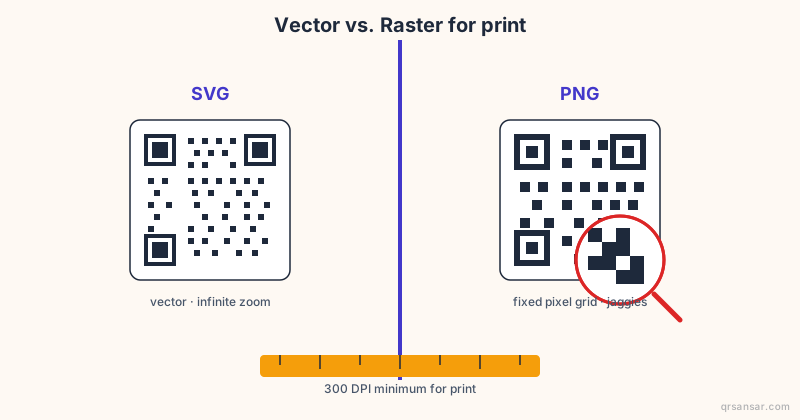
SVG is a vector format. The file describes the QR code as a set of mathematical instructions: "draw a rectangle from this coordinate to that coordinate, fill it black". When you scale the file from 2 cm to 2 metres, the renderer recalculates those coordinates at the new size. The edges stay perfectly crisp because there are no pixels to interpolate. The official specification is maintained by the W3C as SVG 2, and Wikipedia has a clear background article on Scalable Vector Graphics if you want the longer history.
PNG is a raster format. The file is a fixed grid of pixels: typically a square of 256, 512, 1024, or 4096 pixels on a side, with each pixel either black, white, or somewhere in between if anti-aliasing is enabled. The grid is locked at export. Scale a 1024 px PNG up to fill an A3 poster and the printer has to invent pixels that were never there. The result is the visible blockiness you have seen on a hundred over-zoomed phone screenshots.
A QR code is just a 2D barcode. Like all barcodes, it depends on contrast and clean edges. Anything that softens those edges costs you scan reliability, full stop.
For a generator like the one behind /url or /bulk, this is why the SVG export is usually a few kilobytes while the high-resolution PNG export is hundreds of kilobytes or more. The SVG describes the same code in a few hundred path commands; the PNG has to encode every pixel.
File size comparison
Here is what the same QR code looks like in different formats and resolutions for a typical URL payload at error-correction level M.
| Format | Resolution / size | Typical file size | Scales without loss? |
|---|---|---|---|
| SVG | Infinite (vector) | 2-4 KB | Yes |
| PNG @ 256 px | 256x256 pixels | 1-2 KB | No |
| PNG @ 1024 px | 1024x1024 pixels | 8-15 KB | Up to ~3 cm print only |
| PNG @ 4096 px | 4096x4096 pixels | 100-300 KB | Up to ~13 cm print only |
| PDF (vector) | Infinite | 4-8 KB | Yes |
| EPS (vector) | Infinite | 6-12 KB | Yes |
The pattern is clear. SVG is the smallest file and the most flexible. The only reason a PNG ever beats SVG on file size is at 256 px or below, which is unusable for anything beyond a thumbnail on a webpage.
If you are batch-generating IDs, packaging codes, or table-tents, multiply this by hundreds of files. SVG keeps your output folder small and email-friendly; PNG@4096 in bulk will fill a hard drive in a hurry.
DPI and PPI: the same number, two contexts
DPI (dots per inch) and PPI (pixels per inch) are often used interchangeably, but the distinction matters when you talk to a printer.
- PPI describes a digital image: how many pixels are packed into one inch of the image. A 1024 px image printed at 4 inches wide is 256 PPI.
- DPI describes the printer: how many physical ink dots it can lay down per inch. A 300 DPI press lays 300 dots per inch.
For QR codes destined for print, the rule of thumb most pre-press shops follow is 300 PPI at the final print size, minimum. Adobe's own DPI/PPI primer is a good reference if you want to send a colleague a single link. For QR specifically, lower than 300 PPI usually still scans, because QR is forgiving, but you start running into trouble once a module is rendered with fewer than 4-5 ink dots across its width.
Here is the practical implication. If you want a 10 cm (about 4 inch) QR code printed at 300 DPI, the raster file needs to be at least 1200x1200 px. If you want the same code on a 1 metre poster, you need 12,000x12,000 px. That is a 50+ MB file even at high PNG compression. A 4 KB SVG renders the metre-wide version with zero quality loss.
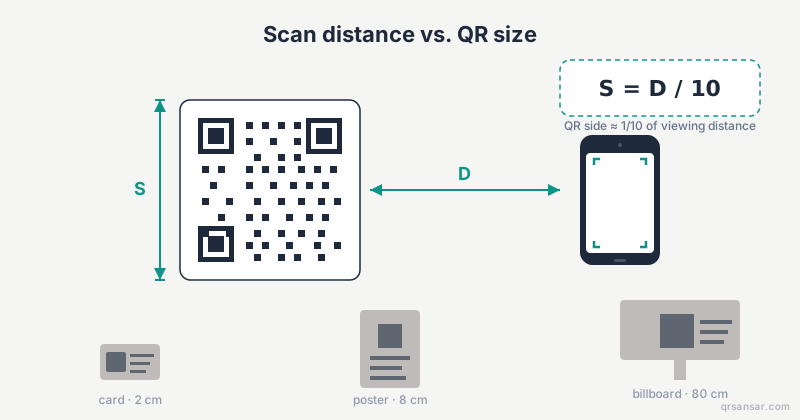
For a deeper look at how physical size maps to scanning distance, see /blog/qr-code-print-size-scanning-distance-formula.
CMYK vs sRGB: the colour space trap
This is the second thing print shops will ask about, and it catches people out.
Screens are sRGB. They emit red, green, and blue light additively. Web design tools default to sRGB and most PNG exports embed an sRGB colour profile.
Offset and digital printers are CMYK. They mix cyan, magenta, yellow, and black ink subtractively on paper. The gamut (range of colours that can be reproduced) is smaller than sRGB.
For a pure black QR code on a white background, this does not matter much. C=0 M=0 Y=0 K=100 is rock solid on any press. But the moment you brand-colour your QR code, sRGB blues and greens can shift noticeably when converted to CMYK at the print shop. A vibrant brand blue may come out muddier; a fluorescent green may flatten entirely.
The fix:
- For mono QR codes, export SVG with
#000000and#ffffff. The shop handles the rest. - For coloured QR codes destined for press, build the source in a CMYK-aware tool (Illustrator, Affinity Designer) and proof on coated stock before the full run.
- Always check contrast after the CMYK conversion. Aim for at least 4.5:1 luminance contrast between modules and background. See /blog/qr-code-color-contrast-accessibility for the underlying numbers.
When PNG is genuinely fine
PNG is not the villain here. There are plenty of places where exporting PNG@1024 is the correct choice and worrying about vector is overkill.
- A QR code embedded in an email signature, rendered at 120 px on the recipient's screen.
- A landing-page hero where the QR is decorative and the primary CTA is a button.
- A social-media post (Instagram, X, LinkedIn) where the platform will re-compress everything to JPEG anyway.
- A mobile-only campaign where users will never see the code printed.
- A blog post screenshot demonstrating what a QR code looks like.
In all of these cases, the code lives on a screen, the maximum display size is well under 5 cm equivalent, and 1024 px gives you headroom. PNG at this resolution is small enough to load fast and crisp enough to scan if anyone ever points a phone at their monitor.
When SVG is non-negotiable
The moment a QR code is going onto a physical surface that is larger than a business card, the answer is SVG (or another vector format like PDF or EPS). Specifically:
- Posters and billboards. Anything above 5 cm of QR width. The poster will be reproduced at whatever the printer dictates, not what you exported.
- T-shirts and screen-printed apparel. Screen printing literally turns vector paths into a stencil. Raster art has to be re-traced, which is extra cost and a chance for errors.
- Embroidery. Digitising for embroidery machines starts from clean vector outlines. Pixels are useless.
- Vinyl decals and signage. Cutters follow vector paths.
- Etching and laser engraving. Same as above; the machine needs paths.
- Packaging dielines. Pre-press artwork is always vector-first.
- Restaurant table tents and menu QR codes (/restaurants) printed at A5 or larger. Cheap copy-shop printers will scale your file to fill the bleed; vector survives this, raster does not.
For any of the above, export SVG from your QR generator, drop it into the layout file, and send the layout file to the printer. Do not convert SVG to PNG along the way "to be safe". You are throwing away the math.
A print-shop checklist
Before you send a QR code to print, run through this list.
- Format: SVG, PDF, or EPS. If the shop insists on a raster, send PNG at 300 PPI calculated for the final print size, not your screen size.
- Colour space: Convert to CMYK if printing offset or digital press. Keep sRGB only for inkjet or web.
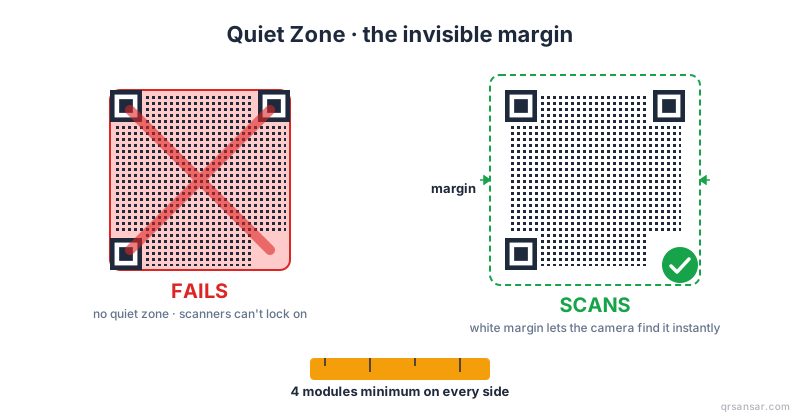
- Quiet zone: Confirm at least 4 modules of white padding around the code. See /blog/quiet-zone-qr-code-padding.
- Contrast: 4.5:1 minimum luminance between modules and background. Test the CMYK-converted version, not the sRGB.
- Error correction level: M or Q for most print. H if you are placing a logo overlay or expecting the code to be partially obscured (stickers peeling, water spots on menus).
- Final size: Calculate from scanning distance. Rule of thumb is QR width = scanning distance / 10. A code scanned from 1 m needs to be at least 10 cm.
- Test scan: Before the full print run, get a proof printed on the actual stock. Scan with two different phones (iPhone and Android). If both work in under 2 seconds, you are good.
- Static payload: For static codes, never use a third-party shortener inside the payload. Read /blog/why-never-use-third-party-shorteners-in-static-qr-codes for why.
Bonus: file naming for batch print jobs
If you are sending dozens or hundreds of QR codes to a print shop (bulk staff IDs, retail price tags, ticket batches), name your files predictably. qr_<id>_<size>.svg beats image (47) final FINAL v2.svg every time. The /bulk generator emits filenames that map back to the source row, which saves the print shop from guessing which code goes where.
The short version
- SVG describes the QR mathematically, so it scales to any size with perfect edges and stays small (2-4 KB).
- PNG is a pixel grid; once exported, it cannot scale up without blurring.
- For web, email, and social, PNG@1024 is fine.
- For anything printed larger than 5 cm, send vector.
- Talk to your print shop in their language: 300 DPI, CMYK, quiet zone, proof before run.
The QR codes you generate with QRSansar can be exported as SVG directly from any of the 31 tools, including /url, /wifi, /vcard, and /nepalqr. For batch jobs that need to land at a print shop on the same day, /bulk emits a zipped folder of SVGs ready for layout.
Generate a print-ready QR code now at /url, or batch up to 1,000 at /bulk. All exports include SVG by default.